Author: admin
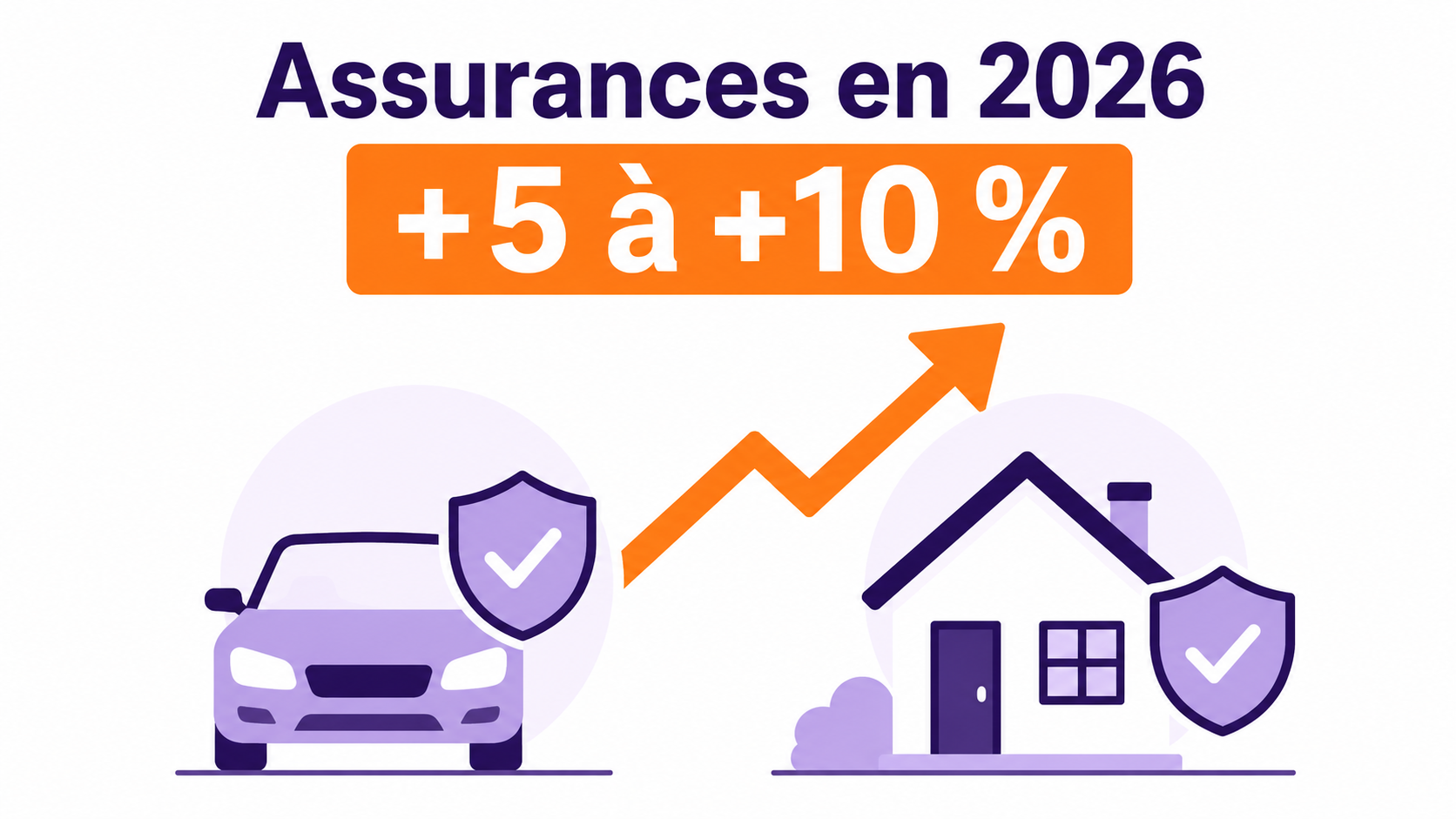
(France) YouTube Premium prix 2026 en France : l’abonnement devient-il trop cher ?

Netflix Price Increase 2026: How Much More You’ll Pay & How to Save
On March 26 Netflix announced they will increase their prices for the second time in less than a year. With this new raise in subscription prices, the introduction of advertisements on the cheapest plan, limited content on the cheapest plan, stricter household and IP rules, and a stricter policy on password sharing. For many users this raises the question: Is Netflix still worth the increasing price?
Check your new Netflix price
Here is a breakdown of the latest pricing
| Netflix Plan | Old Price | New Price | Increase in Cost Per Year |
|---|---|---|---|
| Standard with Ads (HD, 2 devices) | $7.99/month | $8.99/month | $107.88 |
| Standard (HD, 2 devices) | $17.99/month | $19.99/month | $239.88 |
| Premium (4K UHD, 4 devices) | $24.99/month | $26.99/month | $323.88 |
How to switch to a different Netflix plan
Want to switch your Netflix plan? Follow these 4 easy steps
- Sign in to your Netflix account online or open the app on your phone/tablet
- Click on “Account” or “My Netflix”
- Click on “Change Plan” to choose your new plan
- Click on “Continue” or “Update” to immediately upgrade or downgrade your plan.
How to cancel your netflix plan
Want to cancel your account? Here are 4 easy steps on how to do this yourself.
- Sign in to your netflix account online or open the app on your phone/tablet
- Click on “Account” or “My Netflix”
- Click on “Cancel Membership”
- Confirm membership
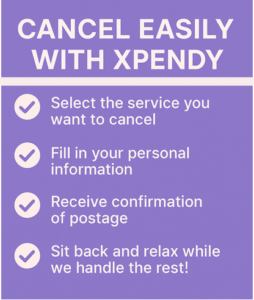
Don’t want the hassle? Use Xpendy
- Go to Xpendy.com
- Select Netflix and click on cancel online
- Fill in your payment information and click on cancel Netflix
No Account login required. Your cancellation is sent directly to Netflix, so you don’t have to deal with any account settings yourself.
Want to keep watching your favourite shows? Consider a different streaming platform.
Here are Netflix’s biggest competitors and your best options.
Hulu
Offers a large mix of current TV shows, original series, movies, and live TV options. It is a strong choice for viewers who want fast access to recent network content and flexible bundle options.
Disney+
Best known for family-friendly entertainment and major franchises like Disney, Pixar, Marvel, Star Wars, and National Geographic. It is a good option for households that want a broad, brand-driven library.
HBO Max
Focuses on premium series, blockbuster movies, HBO originals, and a more high-end content library. It is a strong alternative for viewers who care more about prestige content than sheer volume.
Amazon Prime Video
Includes a wide range of movies, series, live sports, and add-on channel subscriptions. It can be especially appealing for people who already have Amazon Prime and want streaming as part of a broader membership.
Apple TV+
Has a smaller library, but stands out for high-quality original series and films. It is a good fit for viewers who prefer curated premium content over a huge catalog.
Budget friendly options
Hoopla or Kanopy (budget friendly)
Both services can be free through a public library card. Hoopla offers movies, TV shows, audiobooks, eBooks, comics, and music, while Kanopy is especially known for ad-free films, indie titles, documentaries, and classic cinema. Availability depends on your local library.
FAQs
- How do I cancel my Netflix subscription?
Log in to your account, go to the Account page, and click “Cancel Membership” under the Membership & Billing section. - What happens after I cancel my account?
You’ll continue to have access until your billing cycle ends. After that, your subscription will stop, and you won’t be charged again - Can I delete my Netflix account entirely?
Yes, after canceling, you can visit the Help Center to request permanent deletion of your account and data. - What if I change my mind after canceling?
If you reactivate before the billing cycle ends, nothing changes. After that, you can rejoin anytime with your previous account details. - Do I need to cancel through the Netflix app?
You can cancel through the app, website, or with the help of Netflix support. If you used a third-party provider, you’ll need to cancel through them.
How To Cancel Apple Quick And Easy.

Are you trying to stop recurring charges from your Apple account but struggling to manage them? You’re not alone. Many users find it confusing to cancel subscriptions linked to their Apple ID—especially if they use multiple services like the App Store, iCloud, Apple Music, or other third-party subscriptions billed through Apple.
The good news: most active subscriptions can be canceled directly through your device’s Settings app under your Apple ID. Follow this guide to learn how to manage subscriptions across different devices, avoid extra fees, and protect your account.
Cancel your Apple subscriptions easily via Xpendy
Key Takeaways
- Cancel Apple subscriptions via your device’s Settings under the “Subscriptions” section.
- Cancellation steps differ by device—use the App Store on iPhone/iPad/Vision Pro, or Google Play if subscribed via Android.
- Subscriptions may remain active until the end of the billing cycle, so check bank statements to avoid surprise charges.
- Some subscriptions require contacting the service provider directly—especially if paid via Apple Pay or outside the App Store.
- Always review refund policies and keep cancellation records to protect your privacy and finances.
About Apple Subscriptions
Apple subscriptions cover a wide range of services—including Apple Music, iCloud storage, app subscriptions, and third-party services billed through Apple. While convenient, users often lose track of recurring charges or forget to cancel trial offers.
Read more about cancellation options here
How to Cancel Your Apple Subscription
Review your membership agreement
Before canceling any service, review your billing period and terms within your account settings. Knowing when charges occur lets you cancel without getting billed unexpectedly.
Contact options for cancellation
- Via device settings on iPhone, iPad, or Vision Pro (App Store).
- Via Google Play on Android if purchased there.
- By contacting third-party service providers directly if billed outside Apple.
If you prefer a faster way to cancel without dealing with customer support, you can use Xpendy’s cancellation service. We’ll handle the cancellation process for you—quickly, securely, and without stress.
Additional Tips and Information
Cancellation fees
Most Apple subscriptions do not impose cancellation fees. However, since billing is based on fixed cycles, you may lose prepaid time if canceled mid-cycle.
Timing your cancellation
Cancel at least 24–48 hours before your renewal date to prevent unintended charges. Always check the billing date listed in your subscription settings.
Rejoining Apple Services in the Future
You can always restart a canceled subscription using the same Apple ID. Previous content, like iCloud data or app access, remains intact unless expressly removed by you.
FAQs
-
- How do I cancel an Apple subscription?
Go to Settings → tap your name → Subscriptions → select the subscription → Cancel Subscription. Confirm to stop future billing.
-
- Do cancelled subscriptions stop immediately?
No. You keep access until the end of the billing cycle. Billing stops after the current period ends.
-
- What if I subscribed via Google Play or Apple Pay?
Cancel subscriptions purchased via Google Play in the Play Store settings. For Apple Pay or external subscriptions, contact that service provider directly.
-
- Can I cancel on my iPhone if I subscribed on my Mac?
Yes. Apple synchronizes subscriptions across devices linked to the same Apple ID. You can cancel from any device’s Settings.
-
- How can I confirm my subscription cancellation?
You’ll receive an email confirmation from Apple. You can also verify the subscription status in Settings → Subscriptions to ensure it’s listed as expired or cancelled.
How to Cancel Canva: Stop Your Subscription Step-by-Step

Trying to cancel your Canva subscription but unsure where to begin? You’re not the only one. Managing subscriptions can be tricky, especially when you’re navigating through account settings or searching for cancellation options.
It’s important to note: cancelling a Canva plan does not automatically trigger a refund. Instead, it simply prevents future billing once your current subscription period ends.
This guide walks you through the entire process—from accessing your billing settings to managing cancellations, refunds, trials, and support options. Let’s make cancelling your Canva membership simple and stress-free.
Key Takeaways
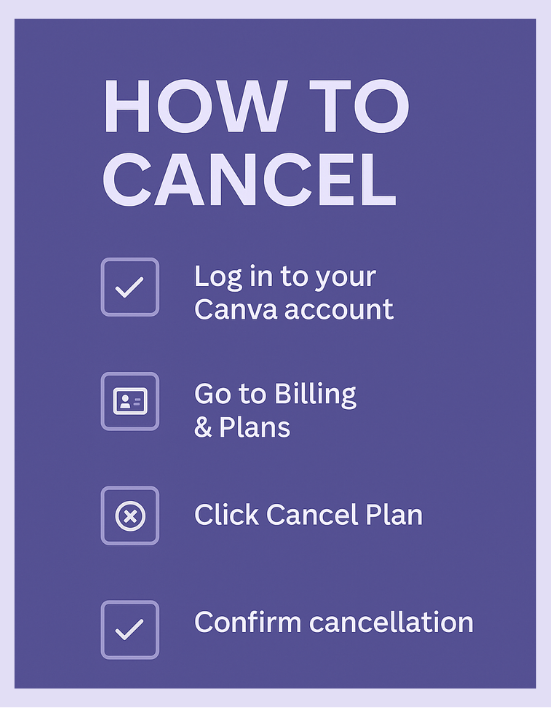
- You can cancel your Canva plan by logging in, navigating to Billing & Plans in your settings, and selecting Cancel plan.
- Cancelling your subscription stops future charges but does not automatically refund your last payment.
- Canva allows you to pause your annual subscription for up to three months—if you’re within two months of renewal.
- Need help or want to request a refund? Use Canva’s Help Center to contact customer support.
- The cancellation process works on both desktop and mobile platforms.
How to Cancel Your Canva Subscription
Here’s how to cancel your Canva subscription in just a few steps:
Log in to Your Canva Account
Head over to the Canva website and log in using your email and password. Once you’re in, look for your profile icon in the top right corner. Click it to access your account menu.
Access Your Account Settings
From the dropdown, click on Settings. This is where you’ll find your account management tools. Select the Billing & Plans section to view all subscription and payment details.
Navigate to ‘Billing & Plans’
Inside Billing & Plans, you’ll see your current plan, payment info, and any upcoming charges. Look for your active subscription and locate the More actions button next to it.
Click on Your Active Subscription
Clicking your active plan reveals more management options. This is where you’ll be able to cancel, pause, or make other changes to your subscription settings.
Select ‘Cancel Plan’
Find and click the Cancel plan button. Canva will ask for confirmation. This stops your subscription from renewing in the next billing cycle. You’ll still have access until your current term ends.
Confirm Cancellation
To complete the process, confirm your cancellation when prompted. Canva may ask for feedback or offer to pause instead—make sure to click through to finalize.
Remember: cancellation does not mean you’ll receive a refund automatically. That’s a separate process you’ll need to request manually.
Pause or Cancel Your Canva Subscription
If you’re on an annual plan and your renewal is less than two months away, Canva gives you the option to pause your plan instead of cancelling. You can pause for up to three months without losing your designs or account access.
To do this:
- Go to Billing & Plans under Settings.
- Select your subscription and choose Pause Plan if eligible.
This way, you won’t be charged during the pause period—and you can resume anytime within the three months.
How to Cancel Canva on Mobile
Cancelling your Canva plan on mobile works similarly to desktop:
- Open the Canva app and sign in.
- Tap the Menu icon (usually three horizontal lines).
- Select Settings, then tap Billing & Plans.
- Tap your active subscription and go to More actions.
- Tap Cancel Subscription and follow the on-screen prompts.
Just like on desktop, cancelling stops future billing but doesn’t provide a refund unless requested separately.
Requesting a Refund from Canva
If you recently paid for a Canva subscription and want a refund, you must submit a request to Canva’s customer support. Here’s how:
- Visit the Canva Help Center.
- Search for “refund request” and follow the article instructions.
- Use the contact form or email option to reach out.
Canva may approve refunds on a case-by-case basis, especially if the request comes shortly after a new billing period starts.
Need Help? Contact Canva Support
If you’re facing issues with your account, billing, or cancellation, Canva offers support through their Help Center. You’ll find:
- Step-by-step articles
- Contact forms for more complex issues
- Email support and sometimes live chat
Log in to your Canva profile to access personalized support options based on your subscription and device.
Cancel Canva the Easy Way—With Xpendy
At Xpendy, we understand how confusing it can be to cancel online subscriptions. That’s why we offer a faster, easier way to cancel services like Canva—no stress, no back-and-forth with customer support. Fill in a simple form, and we take care of the rest.
Cancel your Canva subscription now via Xpendy and start saving today!
Canva Subscription Cancellation FAQs
- How do I cancel my Canva subscription?
Log in, go to Settings → Billing & Plans, then click on Cancel plan next to your active subscription. Confirm the cancellation when prompted. - Will I receive a refund?
No, not automatically. You’ll need to request a refund separately through Canva’s Help Center if you’re eligible. - What happens after my free trial ends?
If you don’t cancel your trial, Canva will charge your payment method once it expires. Cancel beforehand to avoid charges. - Can I cancel from my phone?
Yes. Use the Canva mobile app to access Settings → Billing & Plans, then tap Cancel Subscription. - How can I get help from Canva?
Visit the Canva Help Center to submit support requests, request refunds, or browse troubleshooting articles.
How to Cancel Your Fabletics Membership

Why you might want to cancel your Fabletics membership
Fabletics offers stylish activewear with member-only pricing through a monthly VIP subscription. But not everyone wants to commit to a recurring charge of $59.95 per month—especially if you’re not shopping every month. Maybe you’re trying to reduce unnecessary spending or found a different brand that suits you better.
The good news? Cancelling is possible at any time, and Fabletics does not charge cancellation fees. This guide walks you through every cancellation method available—online, by phone, via live chat, Messenger, or email.
Cancel your Fabletics membership with Xpendy
Key Takeaways
- You can cancel your VIP Membership anytime without penalties.
- Cancel online via your Fabletics account or call customer service 24/7.
- Live chat, Facebook Messenger, and email are also valid cancellation options.
- After cancellation, you can continue shopping at standard prices and use any remaining rewards.
- Monthly cost is $59.95, but there are no fees to cancel the membership.
About Fabletics
Fabletics is a subscription-based activewear brand co-founded by actress Kate Hudson. With their VIP Membership, customers receive discounted pricing and personalized outfit recommendations. However, the monthly charge can catch users off guard, especially if they forget to skip a month.
Luckily, cancelling is easy—whether you’re done with the brand or just want to take a break. You can handle it online or let Xpendy cancel your Fabletics subscription for you hassle-free.
How to Cancel Your Fabletics Membership
Option 1: Cancel online through your account
This is the fastest and most direct way to cancel:
- Log into your Fabletics account via their website.
- Navigate to your “My Account” or subscription settings.
- Click on the “Cancel Membership” link.
- Follow the prompts to confirm your cancellation.
? Tip: You can cancel anytime before the 5th of the month to avoid that month’s charge.
Option 2: Call Fabletics customer service
If you prefer human support, Fabletics offers 24/7 assistance:
- Call their toll-free number (listed on their website).
- Provide your account details and request to cancel your VIP membership.
- A customer representative will process the cancellation immediately.
This method is ideal if you want real-time confirmation or have billing concerns.
Option 3: Cancel via live chat
For a quick and written record of your cancellation:
- Go to the official Fabletics website.
- Click on the live chat icon (usually in the bottom corner).
- Type your cancellation request and follow the rep’s instructions.
You’ll typically receive immediate confirmation via email once it’s processed.
Option 4: Use Facebook Messenger
Fabletics also accepts cancellations through their official Facebook page:
- Go to Fabletics’ Facebook page and click “Message.”
- Type your cancellation request and verify your account.
- The customer service team will confirm your cancellation via chat.
This is useful if you’re already active on Facebook and want a simple way to connect.
Option 5: Cancel by email
For those who prefer a written trail:
- Log into your Fabletics account.
- Find their official support email address.
- Write an email requesting cancellation of your VIP membership.
- Include your full name, email address, and membership details.
You should receive a response confirming your cancellation within a few business days.
What happens after cancellation?
After ending your Fabletics VIP Membership:
- You’ll no longer be charged the $59.95 monthly fee.
- You can still shop at regular prices without a membership.
- Any unused member rewards or credits may still be redeemable (check your account).
Can you return items after cancelling?
Yes. As long as your items meet Fabletics’ return policy (unworn, tags attached, within the return window), you can return them even after cancelling your subscription.
Need help with cancellation?
If you’re having trouble reaching support or want to save time, Xpendy can cancel your Fabletics membership for you quickly and securely. No waiting on hold or dealing with multiple steps.
FAQs
- How do I cancel my Fabletics order?
- Will I be charged a fee for cancelling my Fabletics VIP Membership?
- Can I still shop at Fabletics after cancelling?
- How long does it take to process my cancellation?
- Can I pause my membership instead of cancelling?
Contact Fabletics customer support immediately with your order number. If the item hasn’t shipped yet, they may be able to cancel it.
No. Fabletics does not charge any cancellation or termination fees.
Yes, you can shop at regular prices and redeem any unused credits after cancelling.
Most cancellations are processed instantly, especially if done online or via live chat. Email cancellations may take 1–2 business days.
Fabletics does not currently offer a pause option. You can cancel and rejoin later without penalty.
How to Cancel Xbox Game Pass

Why you might want to cancel Xbox Game Pass
Xbox Game Pass offers access to hundreds of digital games and cloud gaming services across PC, console, and mobile. But maybe your gaming habits have changed, or you’re trying to cut back on monthly expenses. Some users also run into billing issues or end up paying for Game Pass without realizing it due to automatic renewals.
Whatever the reason, canceling your Xbox Game Pass subscription is simple once you know where to go and what steps to follow. All you need is the Microsoft account linked to the subscription.
Cancel your Xbox Game Pass subscription with Xpendy
Key Takeaways
- You must use the Microsoft account that purchased the Xbox Game Pass to cancel successfully.
- Visit the Microsoft subscriptions page and select “Cancel Subscription” under Xbox Game Pass.
- Cancelling stops auto-renewal but you keep access until the end of the billing period.
- You can update your payment method directly from your account settings.
- Refunds are possible but not guaranteed and may require contacting Microsoft support.
About Xbox Game Pass
Xbox Game Pass is Microsoft’s digital subscription service offering unlimited access to a rotating library of video games. With different plans for console, PC, and cloud gaming, users can download or stream hundreds of titles. While it’s popular among gamers, many cancel after trial periods, financial changes, or shifts in gaming habits.
If you’re ready to unsubscribe, follow our step-by-step guide or let Xpendy cancel Xbox Game Pass for you quickly and easily.
How to Cancel Your Xbox Game Pass Subscription
Check your Microsoft account and subscription settings
First, make sure you’re signed in to the correct Microsoft account—the one that originally purchased Xbox Game Pass. Visit the Microsoft Services & Subscriptions page, where all active and past subscriptions are listed.
Here, you’ll be able to view:
- Your current Xbox Game Pass membership status
- Billing cycles and next payment date
- Renewal settings and payment methods
Cancel via the Microsoft website
Once you’ve located your Xbox Game Pass subscription, follow these steps:
- Click “Manage” next to your Game Pass plan
- Select “Cancel Subscription” or “Turn off recurring billing”
- Confirm your cancellation by following the prompts
This action will stop future billing. You will retain access until your current billing period ends.
Tip: If you’re still on a free trial, cancelling right away ensures you won’t be charged when it ends.
Can I cancel Xbox Game Pass from my Xbox console?
Yes. You can cancel directly from your Xbox console:
- Open “Settings” from your Xbox dashboard
- Select “Account” > “Subscriptions”
- Choose Xbox Game Pass and select “Cancel” or “Turn off auto-renew”
This is a handy method if you prefer to manage your membership without using a browser.
Additional Tips and Information
Change your payment method
Avoid billing issues or failed payments by updating your payment method:
- Log into your Microsoft account
- Go to Services & Subscriptions
- Select “Manage” next to Xbox Game Pass
- Choose “Change payment method” and add or remove cards, PayPal, etc.
This ensures smooth renewals if you plan to keep your subscription.
Can you get a refund after canceling?
Microsoft offers limited refunds depending on when you cancel and if you’ve used the service. Generally:
- Cancel early in your billing period to improve refund chances
- Use Microsoft’s online refund request page for digital purchases
- Be prepared to explain why you’re requesting a refund
Note: Some users report difficulty securing refunds, so timing matters.
What happens after cancellation?
When you cancel Xbox Game Pass:
- Your subscription ends at the close of your current billing period
- You keep access to all Game Pass features until that date
- Recurring billing stops, and you won’t be charged again
You can always resubscribe later without penalty.
Tips to avoid unwanted charges
To stay in control of your Xbox Game Pass payments:
- Turn off auto-renew as soon as you decide to cancel
- Watch for promotional periods that auto-renew into paid plans
- Review your account regularly for billing alerts
- Use prepaid codes or gift cards instead of card billing for more control
Or use Xpendy’s cancellation service and skip all the manual steps.
FAQs
- How do I cancel Xbox Game Pass?
- Will I get a refund if I cancel mid-month?
- What if I have Xbox Game Pass Ultimate?
- Can I pause my Xbox Game Pass instead of canceling?
- How do I know if my cancellation worked?
Sign in to your Microsoft account, go to the Services & Subscriptions page, and click “Cancel Subscription” under Xbox Game Pass. You can also cancel via your Xbox console.
Refunds are not guaranteed. You may be eligible depending on usage and how early you cancel in the billing cycle. Check Microsoft’s refund policies online.
The same cancellation steps apply. Go to your Microsoft account and manage the Ultimate subscription like any other plan.
Microsoft doesn’t currently offer a “pause” feature. You must cancel and resubscribe when ready.
After canceling, Microsoft will email you a confirmation. You can also verify status by checking your renewal settings under your subscriptions list.
How to Cancel Chegg

Why you might want to cancel Chegg
Chegg is widely used by students to access homework help, textbook rentals, and study tools. But if your semester is over, you’ve found alternative resources, or you simply want to save money, it might be time to cancel. Thankfully, Chegg allows users to manage or stop their subscriptions directly online. You can also pause your membership if you just need a break without fully canceling.
Cancel your Chegg subscription easily with Xpendy
Key Takeaways
- You can cancel your Chegg subscription online through the website or mobile app.
- Chegg allows users to pause subscriptions for 1 to 6 months instead of canceling.
- Deleting your Chegg account permanently stops any future billing and data access.
- Subscriptions started via Apple or Google Play must be canceled through those platforms.
- Always confirm your cancellation by checking for a confirmation email.
- Chegg customer service is available to help with billing, cancellation, or technical issues.
About Chegg
Chegg is a learning platform offering textbook rentals, study help, and tutoring services. Students use it for step-by-step solutions, expert Q&A, and exam preparation. While it’s useful for short-term academic needs, many users choose to cancel after a semester or when their subscription no longer fits their budget or study style.
Start your Chegg cancellation now with Xpendy
How to Cancel Your Chegg Subscription
Review your membership settings
Before canceling, check your subscription status, billing date, and platform of purchase (e.g., direct from Chegg or via Apple/Google). This helps ensure you follow the right cancellation process and avoid unexpected charges. You can find this info in your Chegg account under “My Account” and “Orders.”
Contact options for cancellation
- Cancel via the Chegg website under Account > Orders > Cancel Subscription
- Use the Chegg app to cancel if you subscribed via iTunes or Google Play
- If you’re unsure where you subscribed, check your email or billing history
- Contact Chegg customer service via the Help Center for account-specific support
To avoid the hassle of navigating these steps, you can also use Xpendy’s cancellation service for a faster, stress-free solution. We’ll cancel your Chegg subscription on your behalf—simple, secure, and quick.
Additional Tips and Information
Pause your Chegg subscription
If you don’t want to cancel entirely, Chegg lets you pause your subscription for 1 to 6 months. During this time, you won’t be charged, and you can resume service later without starting over. Here’s how:
- Log in to your Chegg account on the website or app
- Go to “Account Settings”
- Select the subscription you want to pause
- Choose a pause period between 1–6 months
- Confirm and save your settings
This is a great option during school breaks or exam-free periods.
How to delete your Chegg account
If you want to completely delete your Chegg account and remove personal data, follow these steps:
- Log in at chegg.com
- Go to “My Account” and select “Account Settings”
- Scroll down to find “Delete Account”
- Read any warnings about service loss or resource access
- Confirm your decision and submit a reason if requested
- Check your email for a deletion confirmation
Note: Deleting your account is permanent and will end all subscriptions.
What if you need help?
Chegg offers customer support through its Help Center for billing or cancellation issues. If you subscribed through a third party like Apple or Google Play, you’ll need to cancel through that platform’s subscription settings.
Still stuck? Use Xpendy and we’ll do the cancellation work for you.
FAQs
- Can I cancel Chegg from the mobile app?
- What happens to my saved information if I cancel?
- Do I get a refund when I cancel?
- Can I pause my subscription instead?
- How do I know my cancellation worked?
Yes, but only if you subscribed through Apple or Google Play. In that case, go to your phone’s settings and manage your subscriptions there.
Canceling stops future payments, but your account remains active unless you delete it. To fully remove your data, delete the account via Account Settings.
Chegg generally doesn’t offer refunds for mid-cycle cancellations. However, customer service may assist in special cases.
Yes. You can pause your Chegg subscription for 1 to 6 months and resume later without losing access permanently.
Always check for a cancellation confirmation email from Chegg. If you don’t see one, contact support or try canceling again.
How to Cancel Walmart Plus

Why you might want to cancel Walmart+
Walmart+ offers valuable perks like free shipping, fuel discounts, and in-store Scan & Go. However, not everyone finds the $12.95 monthly fee (or $98/year) worth it long term—especially if shopping habits have changed or benefits go unused. Luckily, cancellation is possible and straightforward when you know how.
Cancel your membership easily via Xpendy
Key Takeaways
- You can cancel Walmart+ anytime online—only via browser, not in the Walmart app.
- The 30-day free trial ends automatically unless you choose to upgrade, but auto-renewal applies after that.
- Your benefits continue until the end of your billing cycle, even after cancellation.
- Walmart+ does not issue partial refunds for unused time.
- Set a calendar reminder—auto-renewal can sneak up on you if you forget.
- If you signed up through a third party (like Apple), cancellation must go through that platform.
About Walmart+
Walmart+ is Walmart’s answer to Amazon Prime, providing members with free shipping (no order minimum), discounts on fuel, grocery delivery, and mobile scan features in-store. It’s available via monthly or annual subscription. If you’re not using it regularly, canceling may save you money.
Read more about cancellation options here
How to Cancel Your Walmart+ Membership
Review your membership agreement
Before you cancel, it’s smart to check the terms of your membership in your Walmart account. This includes renewal dates, billing cycles, and if you signed up through a third party like Apple or Google Play. Knowing this helps prevent surprise charges and ensures a clean cancellation.
Contact options for cancellation
- Cancel online at walmart.com/plus under your account settings
- Log in via a desktop browser—mobile app cancellation is not supported
- If you subscribed via Apple, Google Play, or another platform, cancel directly through their subscription settings
- Walmart customer service (phone or chat) can assist if you encounter technical issues
If you prefer a faster way to cancel without dealing with customer support, you can use Xpendy’s cancellation service. We’ll handle the cancellation process for you—quickly, securely, and without stress.
Additional Tips and Information
Cancellation fees
There are no cancellation fees for Walmart+ members. You can cancel anytime, and your membership will remain active until the end of your billing cycle. However, Walmart does not offer prorated refunds—so cancel before your next renewal date to avoid being charged again.
Timing your cancellation
To avoid unwanted charges, cancel at least 24–48 hours before your renewal date. If you’re on a free trial, cancel before the 30th day to prevent automatic billing. Log into your account and verify the renewal date under membership details.
Rejoining Walmart+ in the Future
You can always come back to Walmart+ by logging into your account and reactivating the service. Your previous settings won’t be lost, but you may not qualify for a new free trial. Saved delivery preferences and purchase history will remain linked to your account.
FAQs
- Do I get a refund if I cancel Walmart+?
- Will my order history or saved items be deleted after cancellation?
- How do I cancel if I signed up via Apple or Google Play?
- Can I restart my Walmart+ subscription later?
- How do I confirm my Walmart+ membership is canceled?
No, Walmart does not provide partial refunds for canceled memberships. Your benefits remain until the end of your billing cycle.
No. Your Walmart account remains intact, including order history and saved preferences.
You must cancel through the subscription settings of the platform where you enrolled (e.g., iPhone Settings or Google Play Store).
Yes. You can reactivate your Walmart+ membership at any time through your account dashboard.
You’ll receive an email confirmation, and your account dashboard will reflect the updated status showing cancellation or expiration.
How to Cancel Factor Meals Subscription

Thinking about canceling your Factor Meals subscription? You’re not alone. Whether you’re changing diets, cutting back on costs, or simply trying something new, it’s helpful to know how to end your subscription quickly and without extra stress.
This blog explains step-by-step how to cancel your Factor Meals plan, return to manual meal prep, or pause deliveries if you’re not quite ready to say goodbye forever.
Key Takeaways
- You can cancel your Factor Meals subscription online in your account settings.
- Go to “Plan Settings” and click “Deactivate My Plan,” then follow the prompts.
- Factor also lets you pause or modify your plan without canceling.
- Contact customer support by phone (888-573-5727), email, or social media if needed.
- You’ll stop being charged after your cancellation is processed (unless a shipment is already prepared).
Step-by-Step: How to Cancel Factor Meals
1. Log into your account
Start by signing in at factor75.com using your email and password. Once logged in, go to your Plan Settings—you’ll find this under your account dashboard.
2. Go to “Plan Settings”
In the Plan Settings section, scroll down to the Status area. This is where you can manage your subscription details, including cancellations or delivery pauses.
3. Click on “Deactivate My Plan”
Click the “Deactivate My Plan” button to start the cancellation process. Factor will prompt you to confirm your decision.
4. Select a reason (or click “Cancel Anyway”)
Choose your cancellation reason from the list provided, or skip this by clicking “Cancel Anyway.” This step helps Factor improve their service, but it’s optional.
5. Confirm cancellation
After choosing (or skipping) the reason, confirm your decision. Your subscription will then be canceled, and no future deliveries will be scheduled—unless one is already prepared.
Need Help? Contact Factor Customer Service
? Call: 888-573-5727
Talk directly to a customer service rep who can guide you through canceling, pausing, or changing your plan. Keep your account info handy for faster service.
? Email
Send your cancellation request to support@factor75.com (or through the contact form on their site). Emailing is a good choice if you want written confirmation of your request.
? Social Media
You can also message Factor on platforms like Facebook and Instagram. Their social media support team is responsive and often helps with account or delivery issues.
Other Options Besides Canceling
Not ready to cancel fully? Factor offers other flexible options:
- Pause your plan: Temporarily stop deliveries without canceling.
- Change your meals: Adjust the type or number of meals in your weekly box.
- Skip a week: Great for vacations or busy weeks.
You can manage these options from the same Plan Settings menu in your account.
Final Thoughts
Canceling Factor Meals is a straightforward process that puts you in control of your deliveries. Whether you want to pause, cancel, or just change your meal plan, you can do it all online—or reach out to customer support for extra help.
And remember: if you’re managing multiple subscriptions, canceling one service at a time can be time-consuming. That’s where Xpendy comes in.
Say Goodbye to Unwanted Subscriptions
At Xpendy, we make canceling subscriptions like Factor Meals even easier. No hold times, no back-and-forth emails—just one click, and we’ll handle the rest.
? Cancel Factor Meals with Xpendy – Fast, Easy, and Hassle-Free!
FAQs
- 1. How do I cancel my Factor Meals subscription?
Log into your account, go to Plan Settings, and click “Deactivate My Plan.” Then follow the prompts to complete your cancellation. - 2. Can I pause my plan instead of canceling?
Yes! Factor allows you to pause deliveries without canceling entirely—perfect for short breaks. - 3. What if I need help canceling?
You can call 888-573-5727, email support, or mes